Flashing without disassembly
The whole run takes about 20 minutes.
Before you start
Section titled “Before you start”What you need
Section titled “What you need”- A laptop with TPM 2.0 (see above).
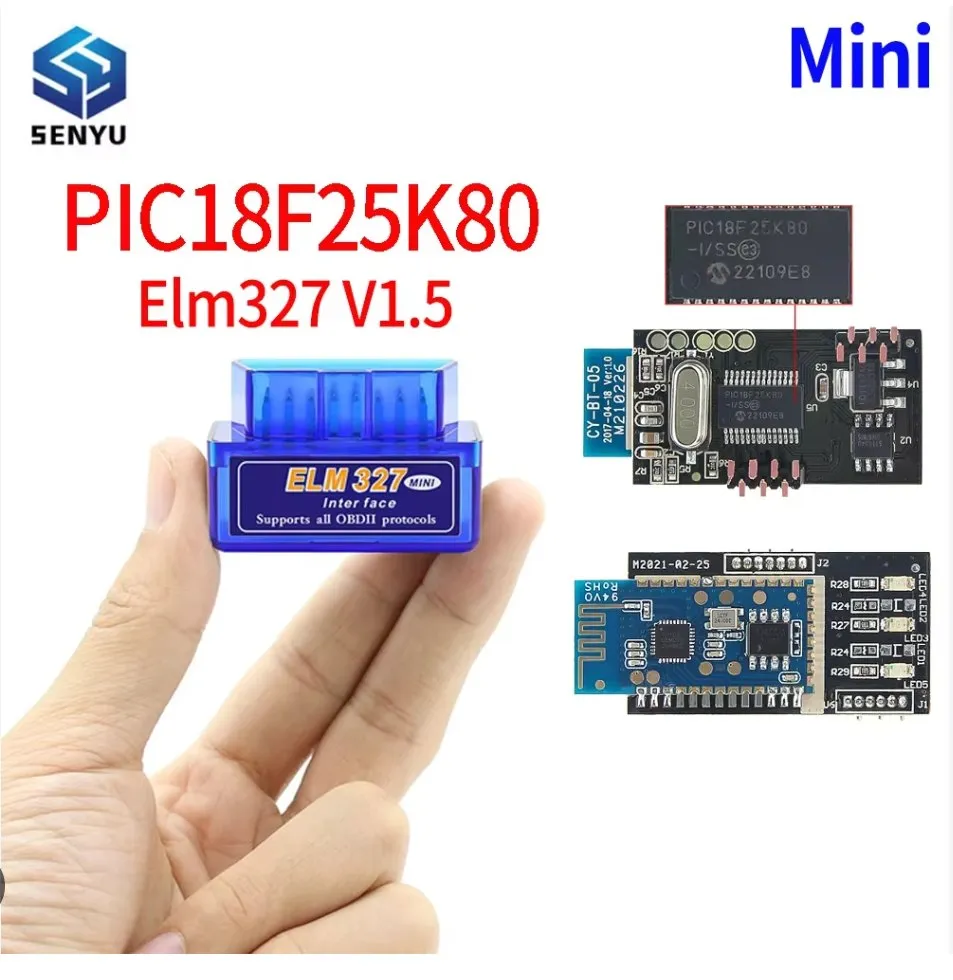
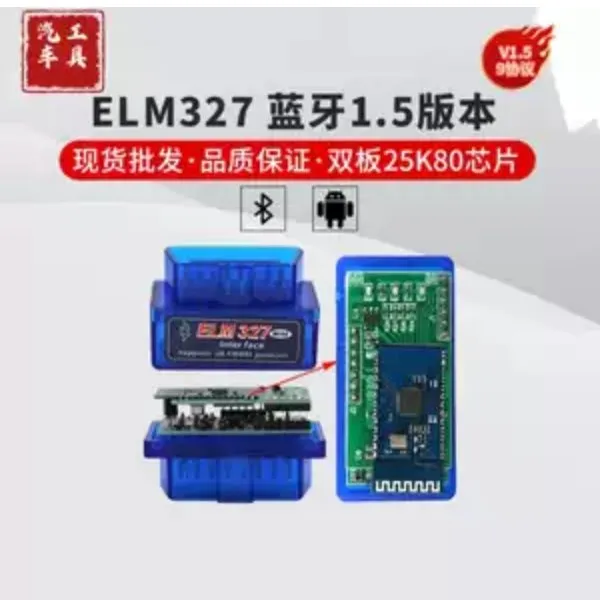
- An ELM327 v1.5 Bluetooth adapter on the
PIC18F25K80chip — the double-PCB version. Cheaper single-board clones on other chips do not work reliably. - A USB-A ↔ USB-A cable (both ends type A, “male-to-male”).
- The firmware bundle — a
.foodfile.
What the adapter looks like, and where to buy it
Both listings below are the right thing — a v1.5 double-PCB ELM327 on the
PIC18F25K80. Match the chip marking, not the case: the blue housing is used
by dozens of different boards.
Wiring
Section titled “Wiring”- Plug the ELM327 into the vehicle’s OBD-II port.
- Connect the head unit to the laptop with the USB-A ↔ USB-A cable.
Both connections have to be in place before you start the pipeline.
1. Sign in
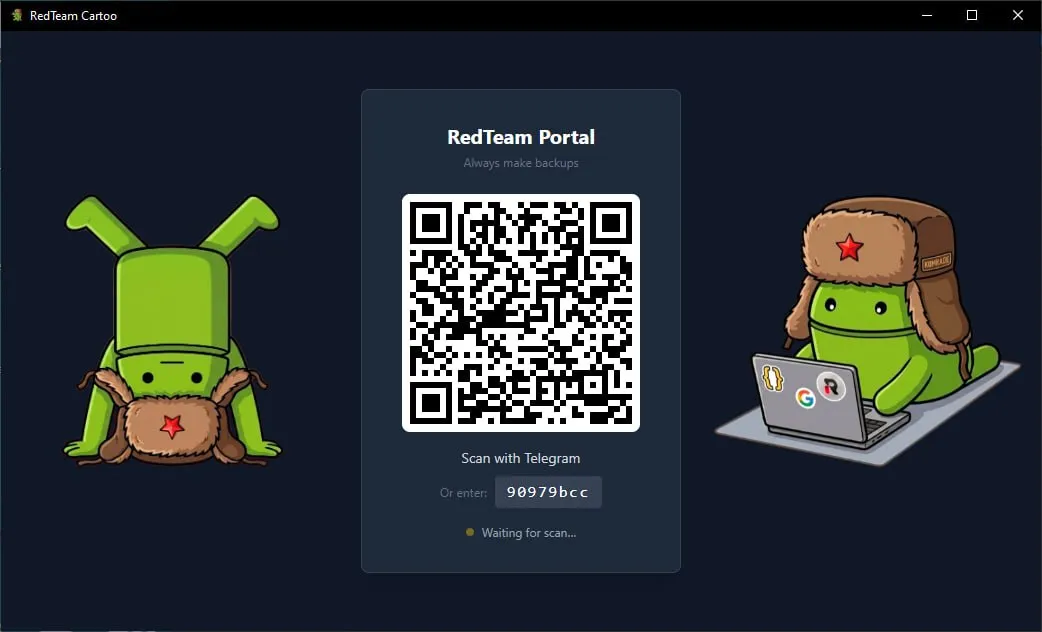
Section titled “1. Sign in”Open the sign-in screen in the CRM and scan the QR there. If you cannot, send the QR — or the short code printed under it — to your manager.
2. Open Files
Section titled “2. Open Files”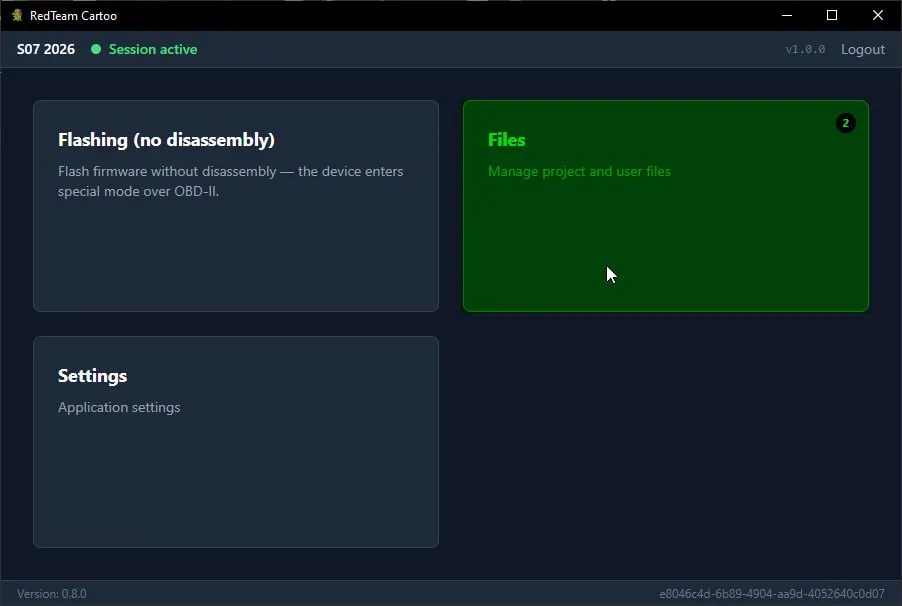
3. Import the firmware bundle
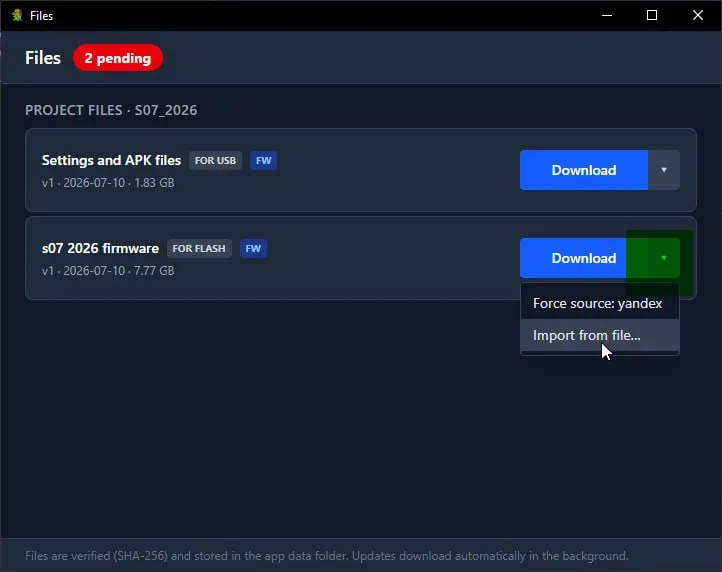
Section titled “3. Import the firmware bundle”Files download automatically in the background. To load a bundle you already have on disk, open the dropdown next to Download and pick Import from file….
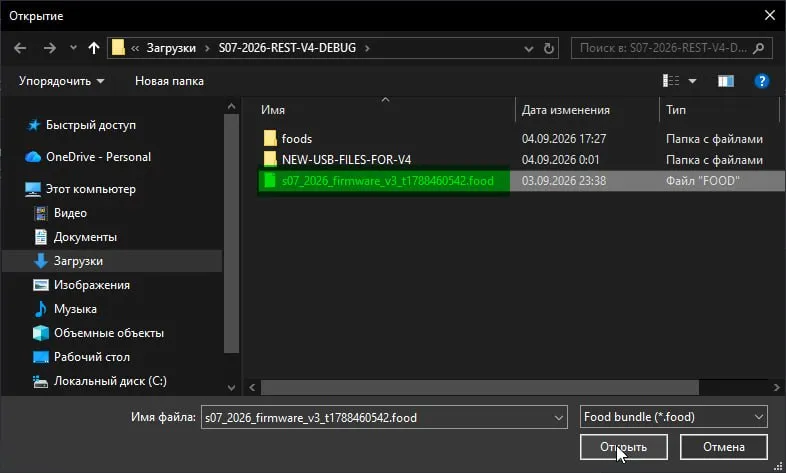
Pick the .food bundle.
4. Start the pipeline
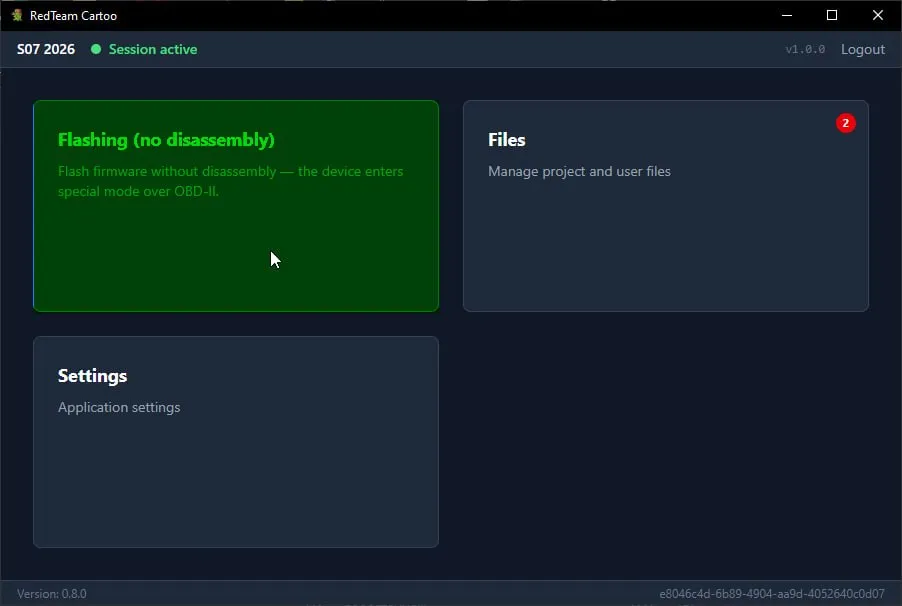
Section titled “4. Start the pipeline”Back on the main menu, open Flashing (no disassembly).
5. Enter the VIN
Section titled “5. Enter the VIN”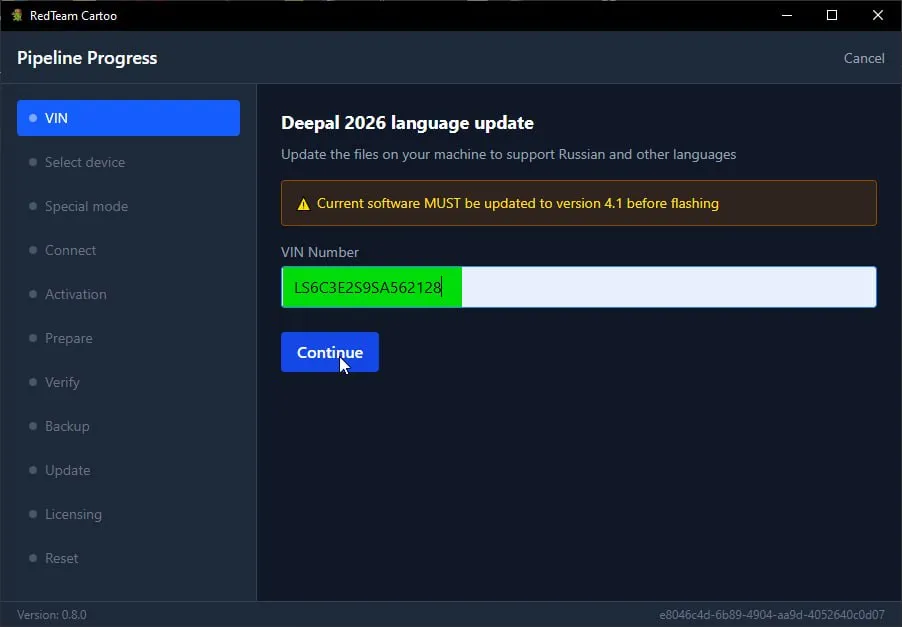
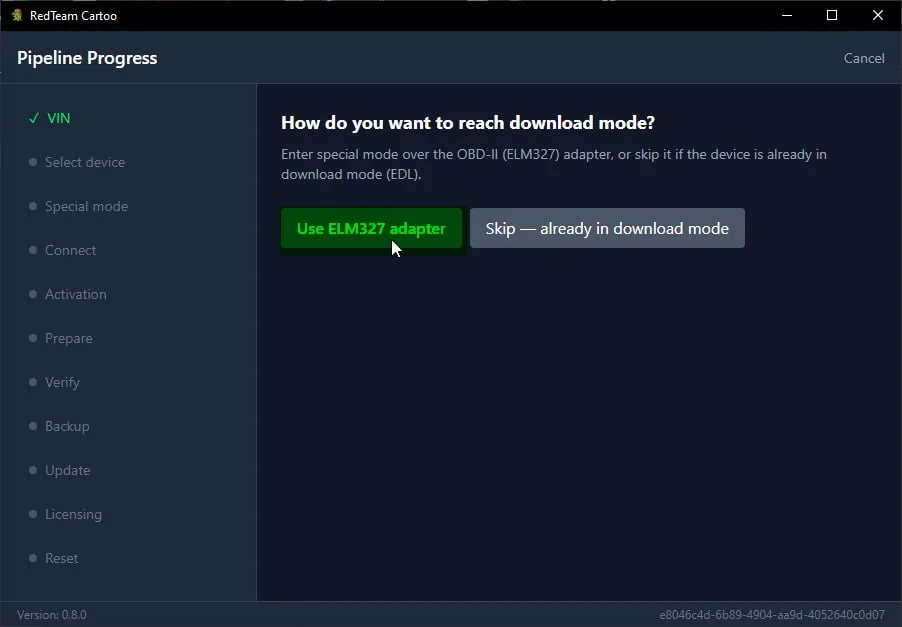
6. Choose how to reach download mode
Section titled “6. Choose how to reach download mode”Use the ELM327 adapter, or skip this if the device is already in download mode (EDL).
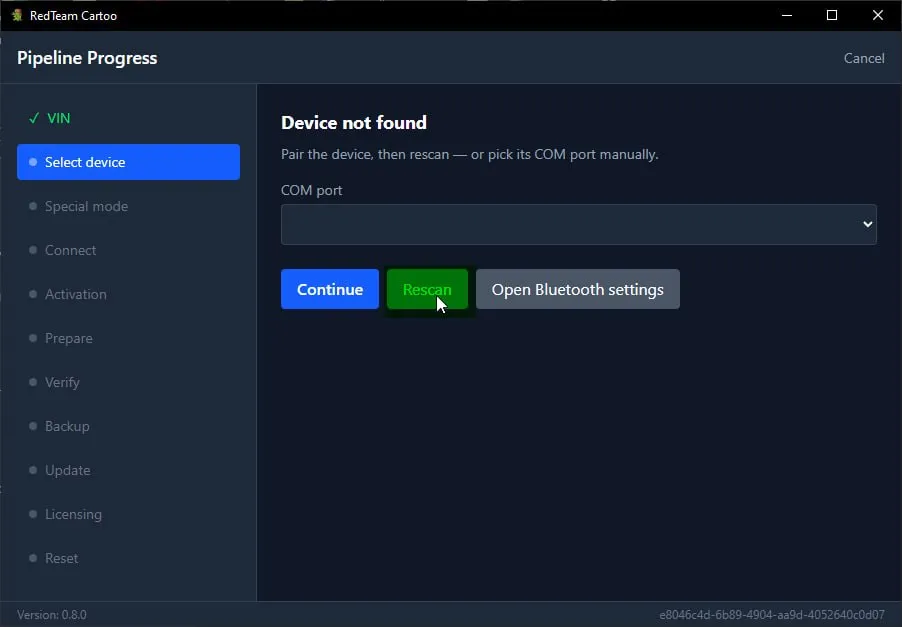
7. Pair the adapter
Section titled “7. Pair the adapter”If no adapter is found, open the Bluetooth settings from this screen.
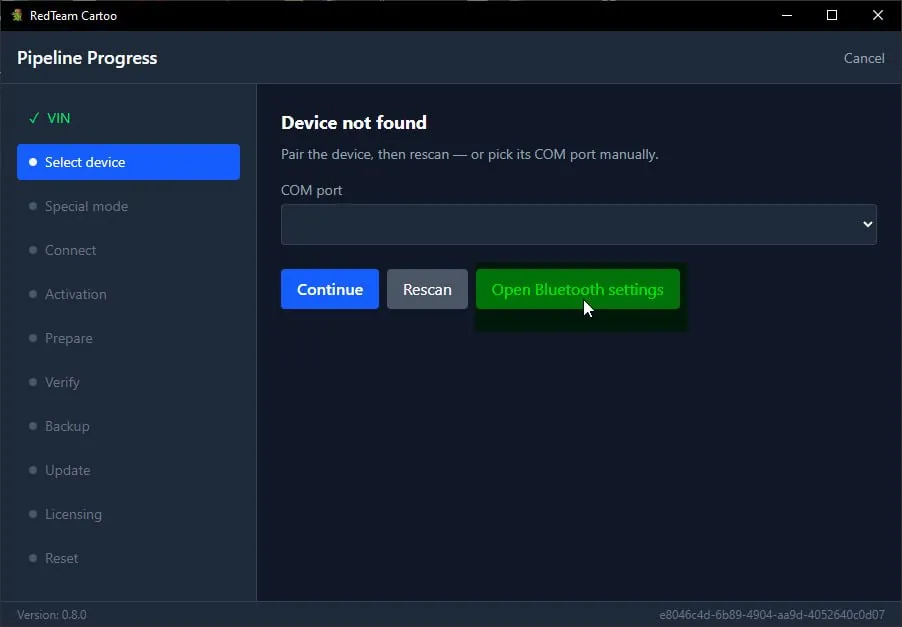
Add the OBDII device.
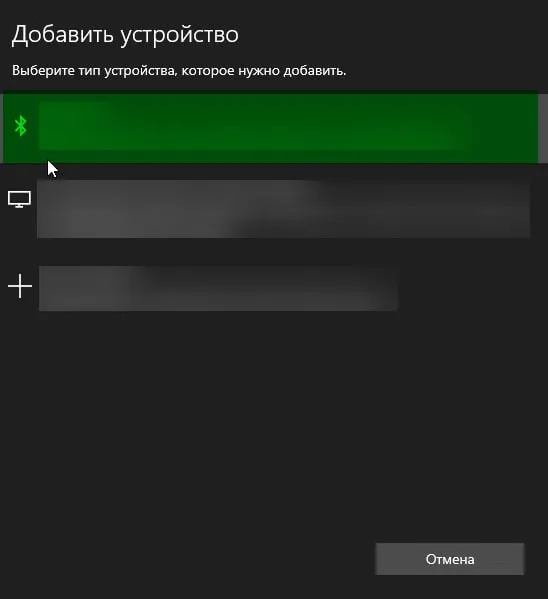
The pairing PIN is 1234.
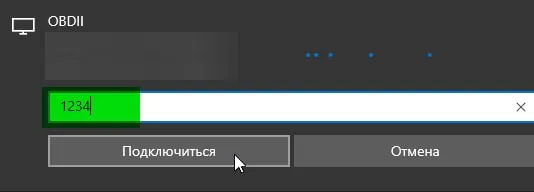
Back in Cartoo, press Rescan. The COM port should now be filled in.
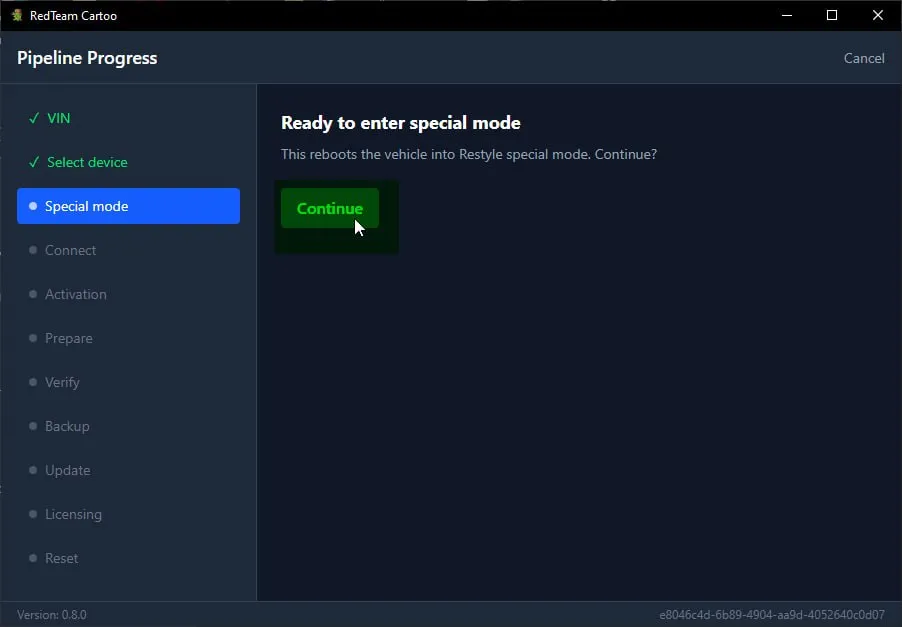
8. Enter special mode
Section titled “8. Enter special mode”This reboots the vehicle into Restyle special mode.
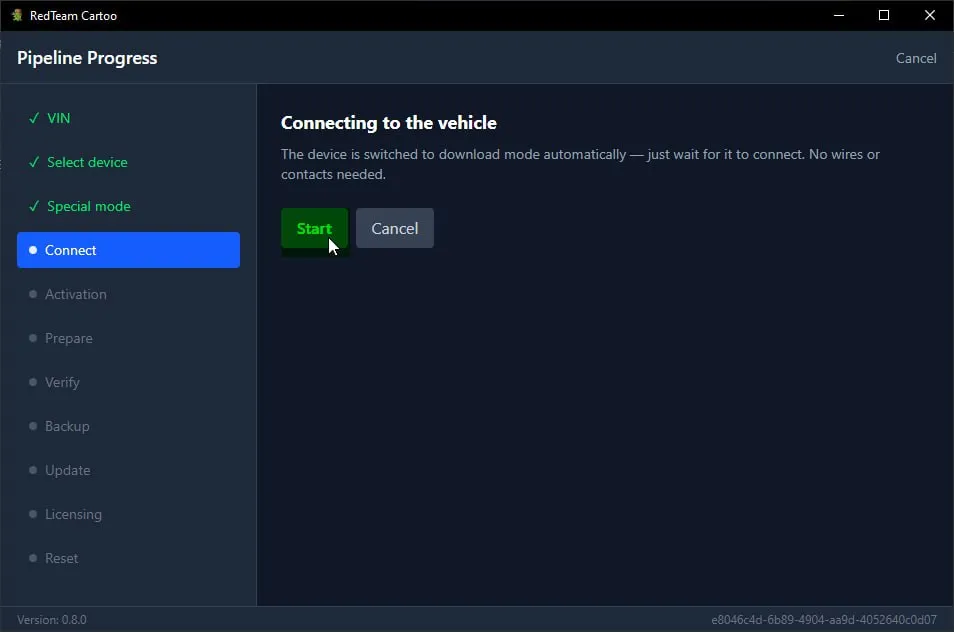
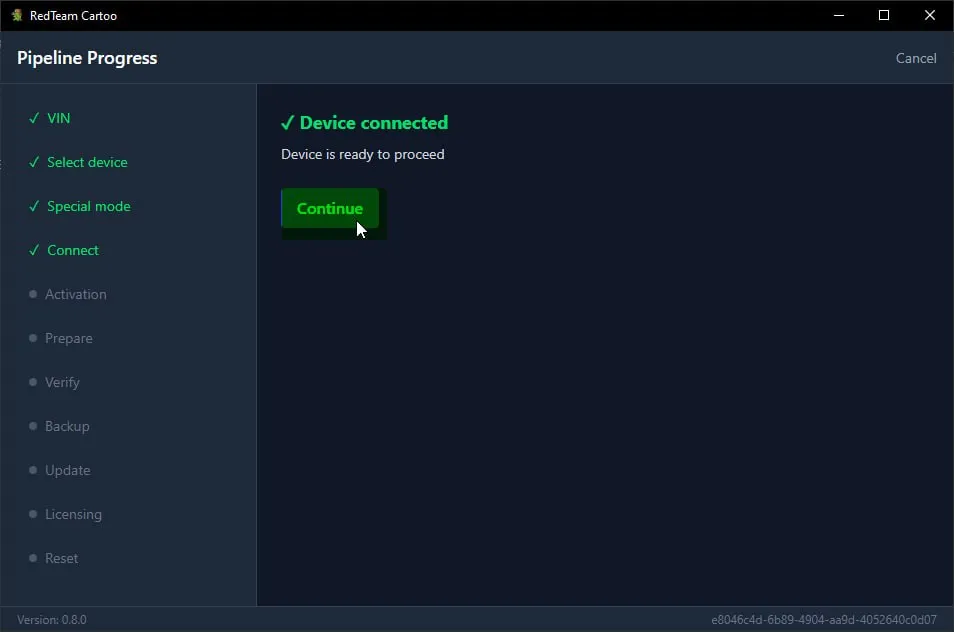
9. Connect
Section titled “9. Connect”The device switches to download mode on its own — no wires, no shorting contacts.
10. Partition backup
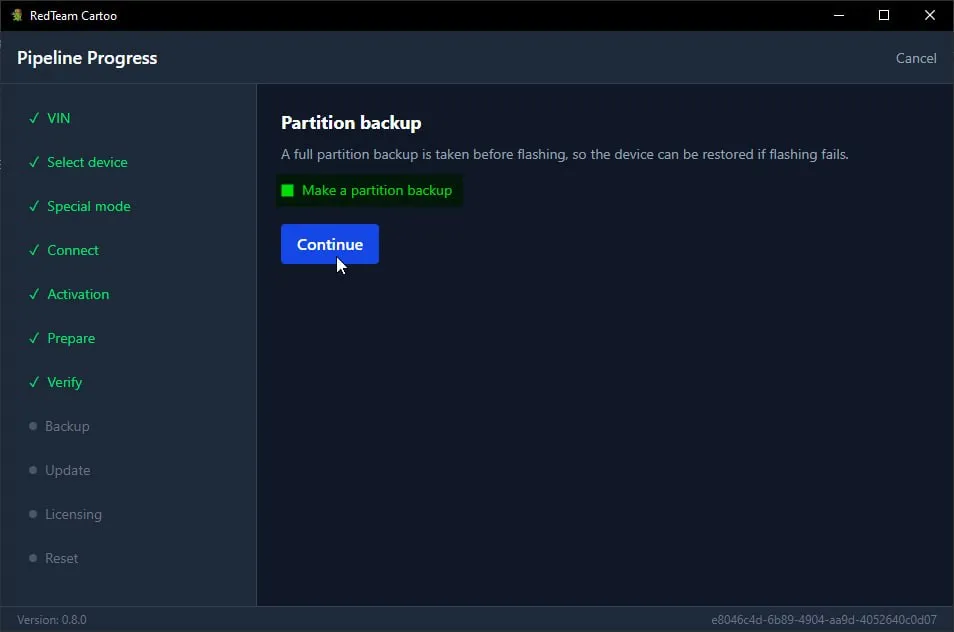
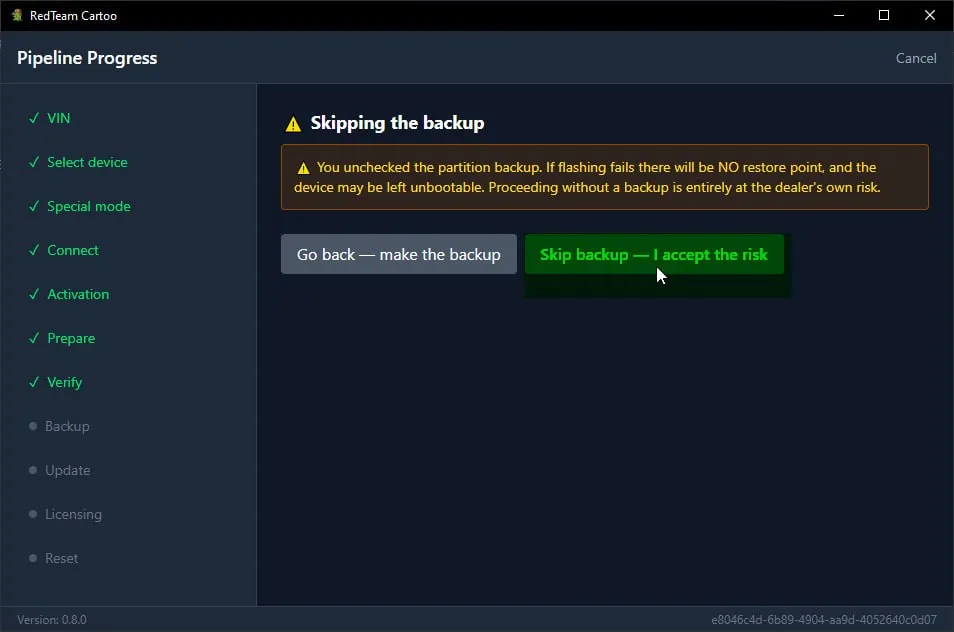
Section titled “10. Partition backup”Leave Make a partition backup checked. It is the only restore point if flashing fails.
11. Wait
Section titled “11. Wait”
12. Flashing complete
Section titled “12. Flashing complete”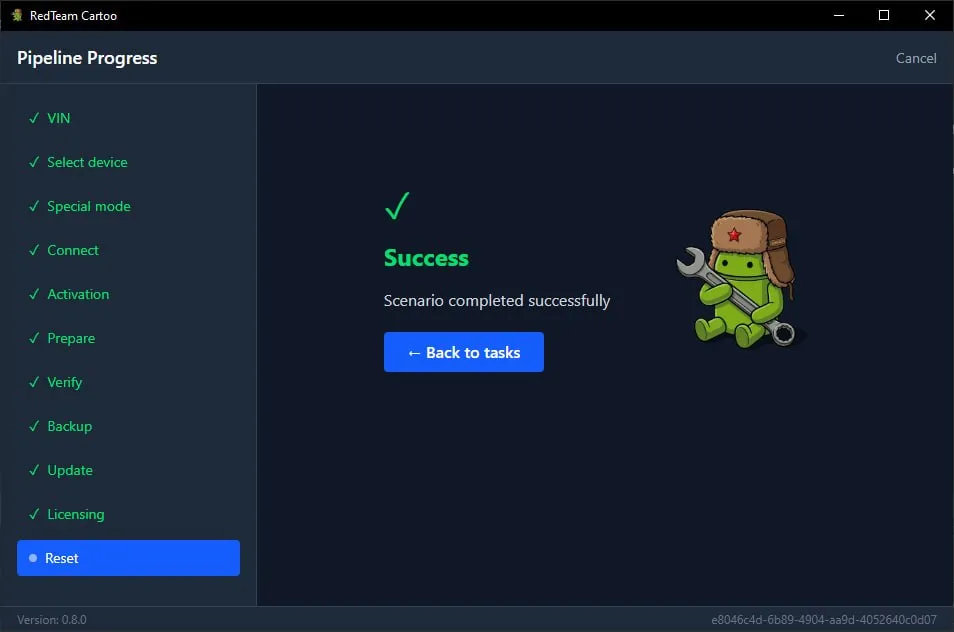
The firmware is on the unit, but the vehicle is not localised yet. Everything below happens in the car, not in Cartoo.
13. Reboot the vehicle
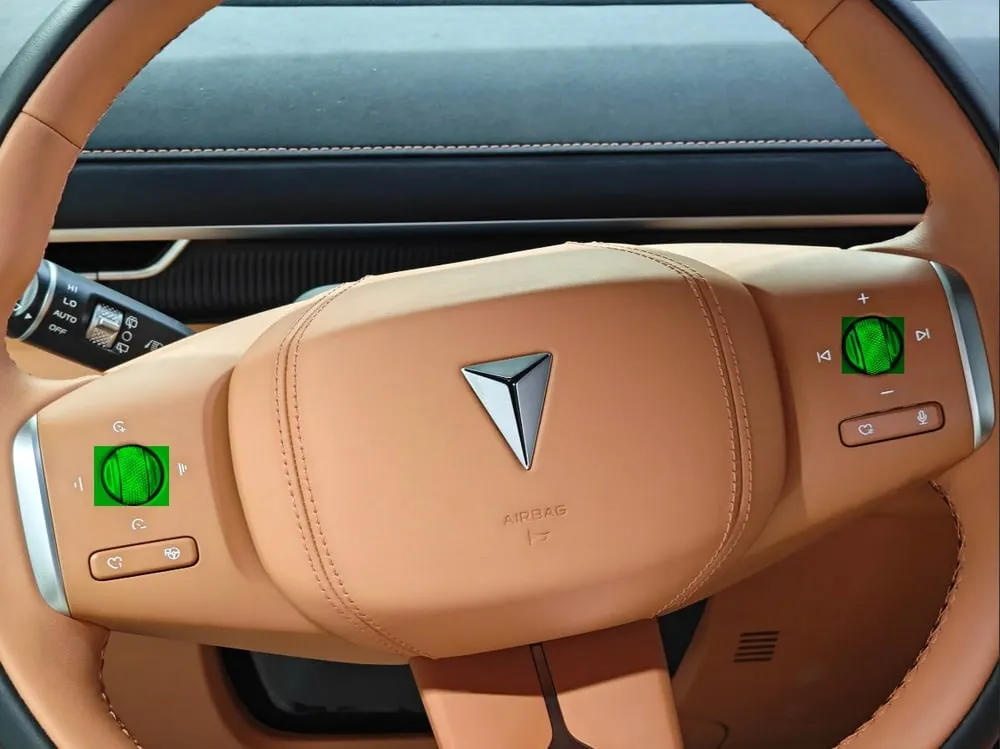
Section titled “13. Reboot the vehicle”Press and hold both steering-wheel scroll wheels at once until the screens go dark and the unit restarts.
14. Clear the pop-ups
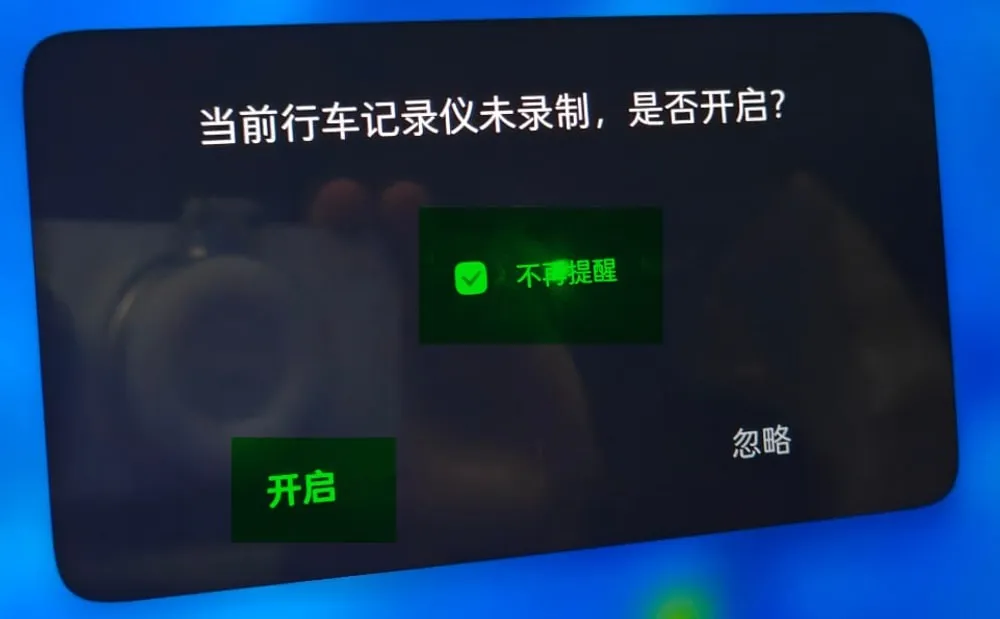
Section titled “14. Clear the pop-ups”The car comes back up with a series of dialogs. Answer them in this order.
Dash cam not recording — start it? Tick 不再提醒 (“don’t remind me again”), then tap 开启 (“turn on”).
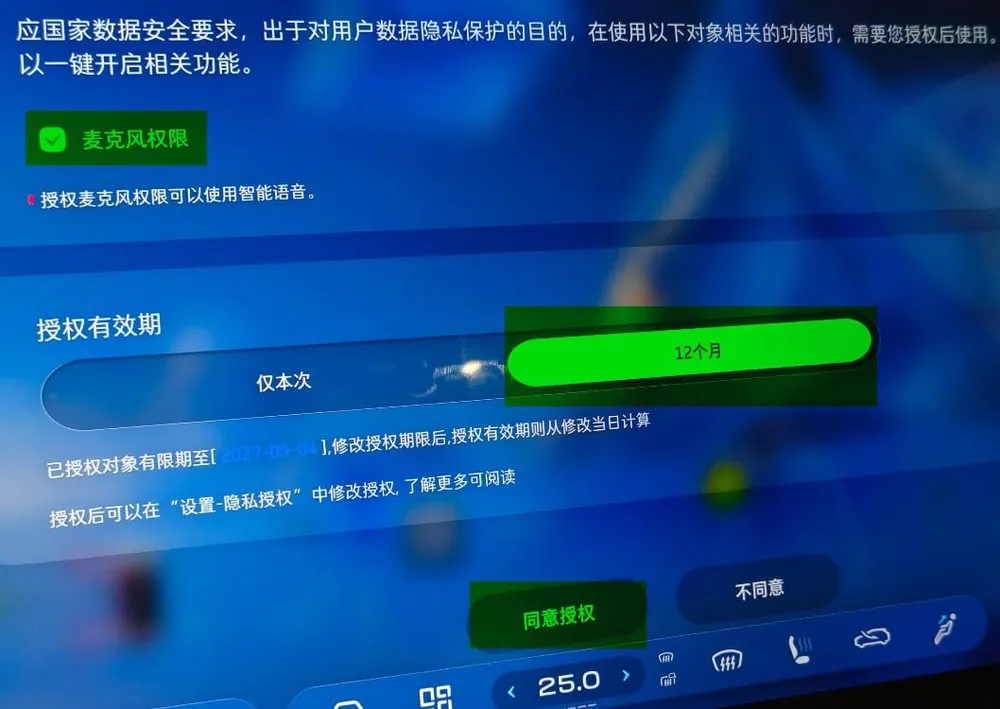
Microphone permission. Set the validity period to 12个月 (12 months), then tap 同意授权 (“grant”).
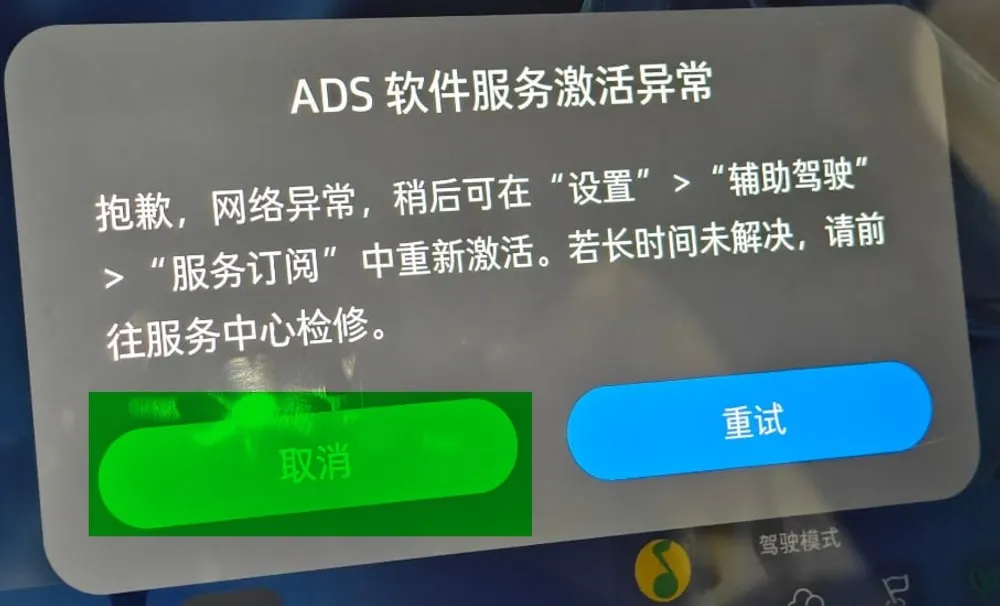
ADS software service activation failed. Expected — the car has no network at this point. Tap 取消 (“cancel”). Do not retry.
15. Get the activation certificate
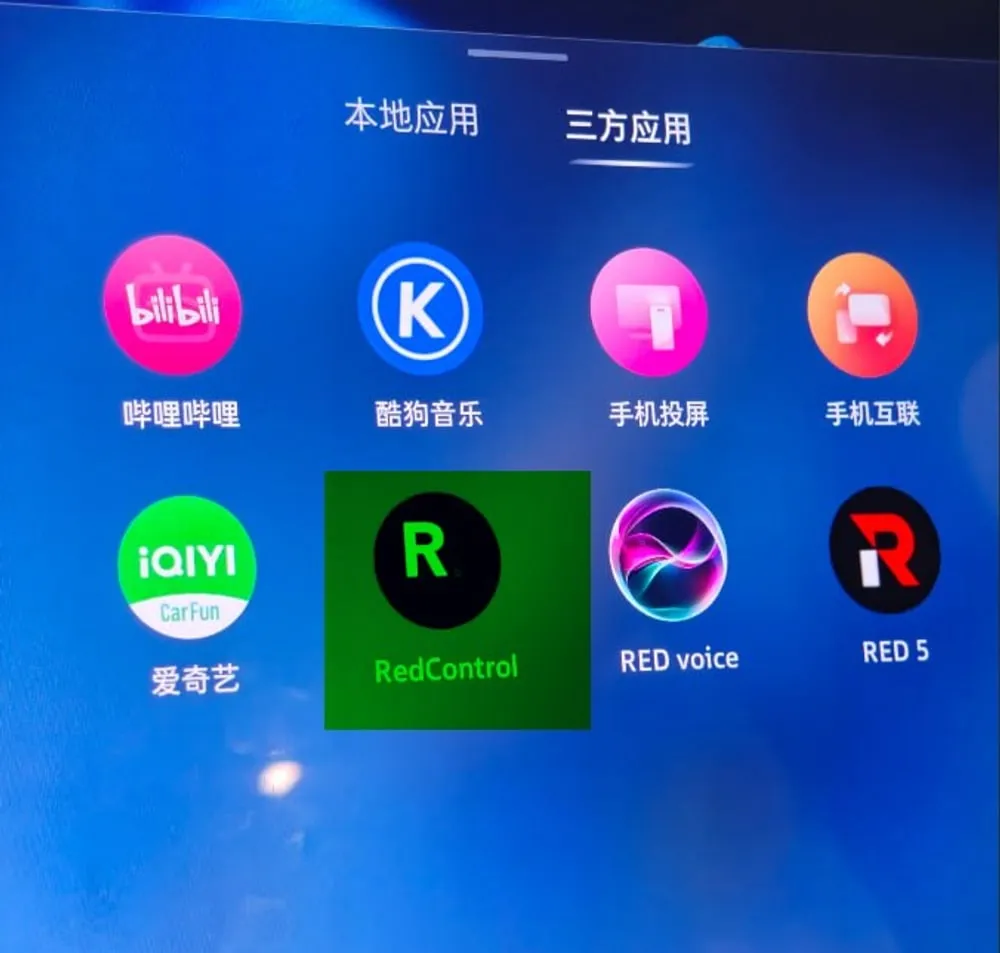
Section titled “15. Get the activation certificate”Open RedControl from the third-party apps tab (三方应用).
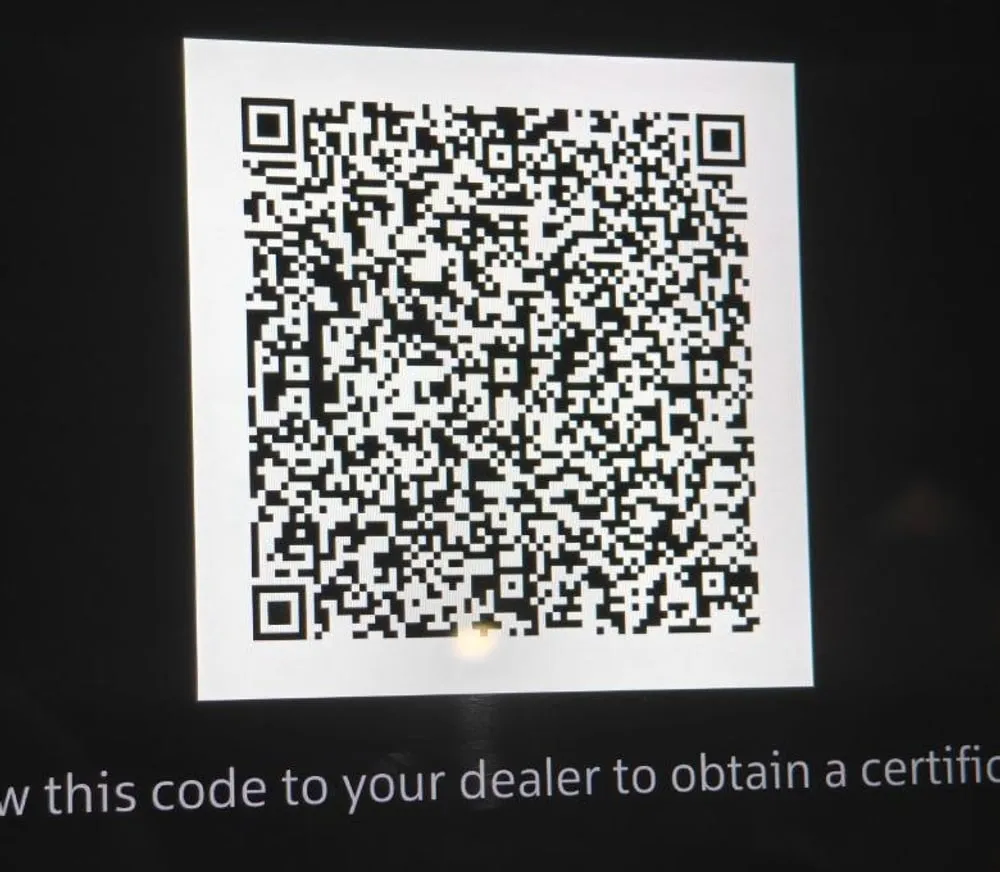
It shows a QR code. Scan it through the CRM, or send it to your manager — same
as at sign-in. You get back a certificate file named after the VIN,
<VIN>.cert.
16. Prepare the USB stick
Section titled “16. Prepare the USB stick”The stick must be formatted FAT-32 or exFAT. Nothing else is read.
Unpack NEW-USB-FILES-FOR-V4.zip — it ships alongside the firmware bundle.
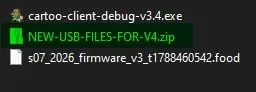
Copy all four folders — DeepalConfig, DeepalInstall, DeepalObb,
DeepalOverlays — to the stick.
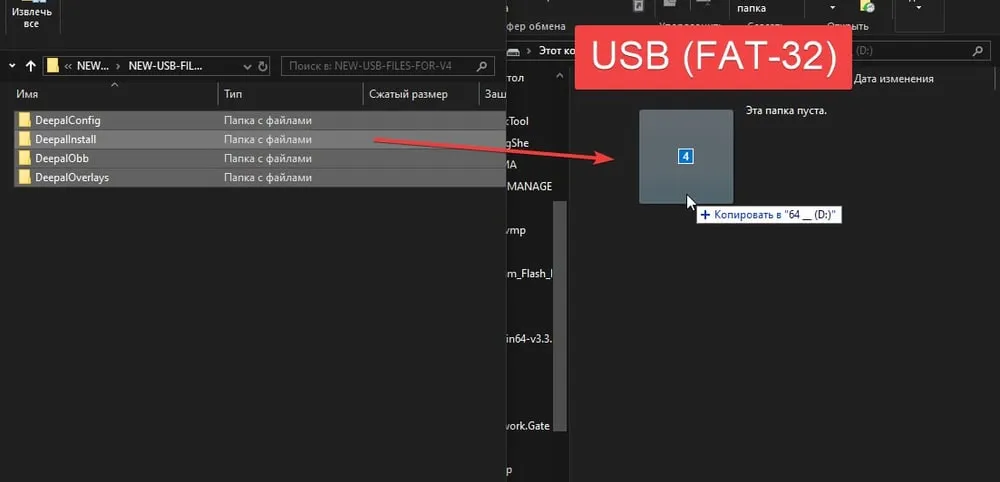
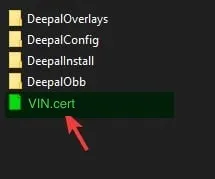
Then put the .cert file in the root of the stick, next to the folders —
not inside any of them.
17. Install from the stick
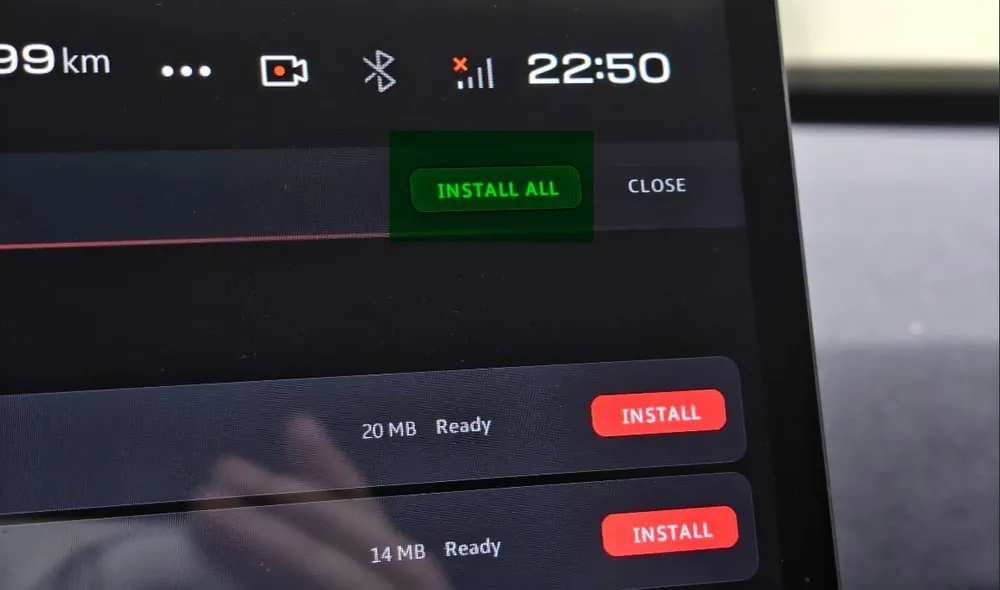
Section titled “17. Install from the stick”Plug the stick into the car and wait for the install menu to come up. Tap INSTALL ALL.
When that finishes, scroll to Resources (OBB) and pick one language — EN, ES, RU or UA — then tap COPY on the right of that row.
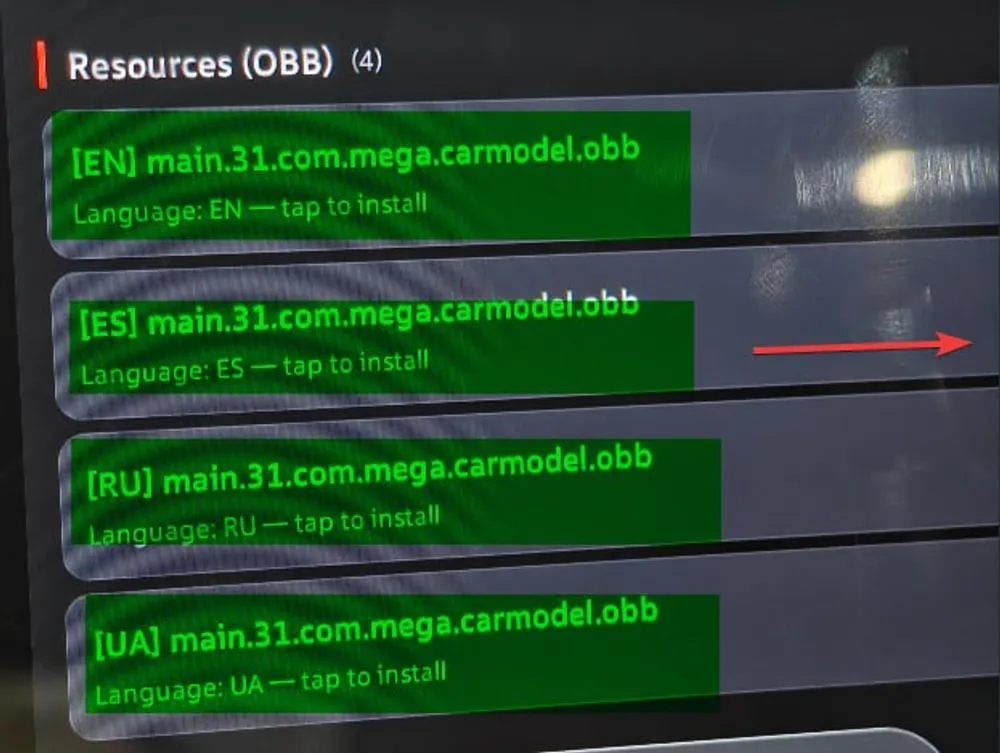
Wait for the copy to report success before moving on.
18. Switch the Android system language
Section titled “18. Switch the Android system language”The locale files are on the unit now, but Android is still set to Chinese.
Open the Settings APK from the app drawer — the green gear, not the car’s own settings.
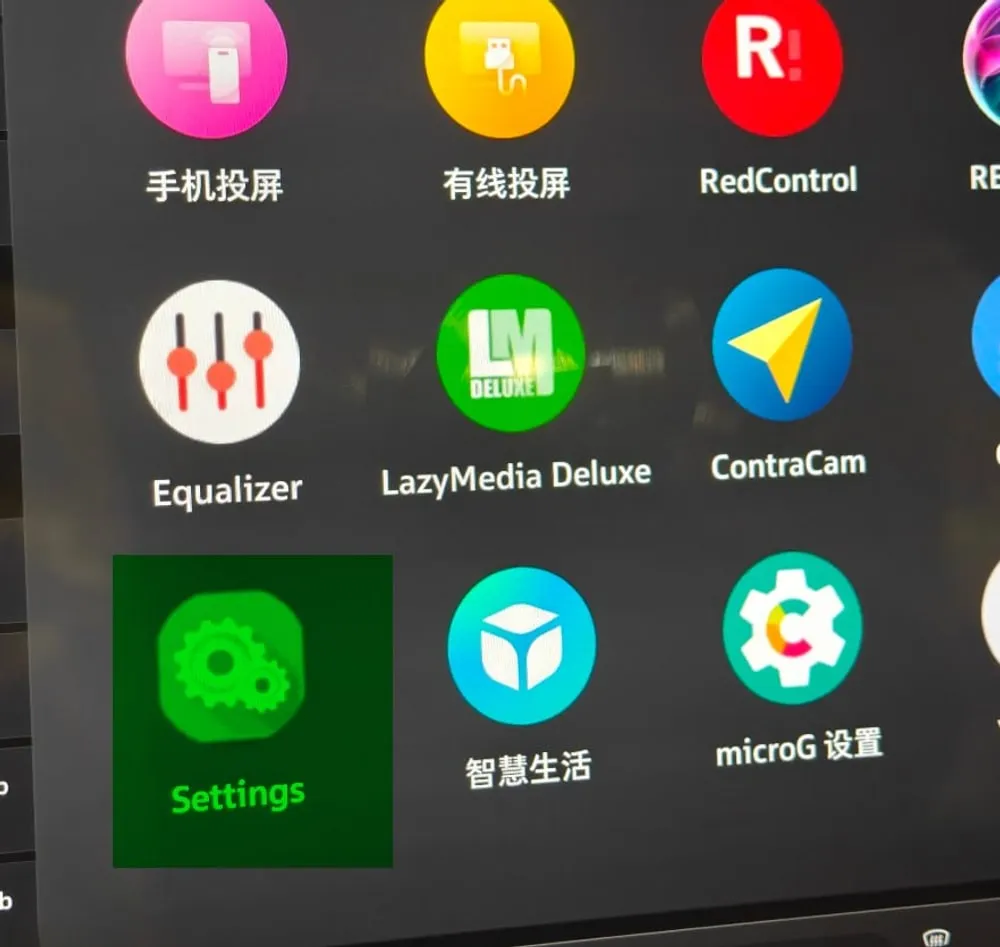
Tap All Settings.
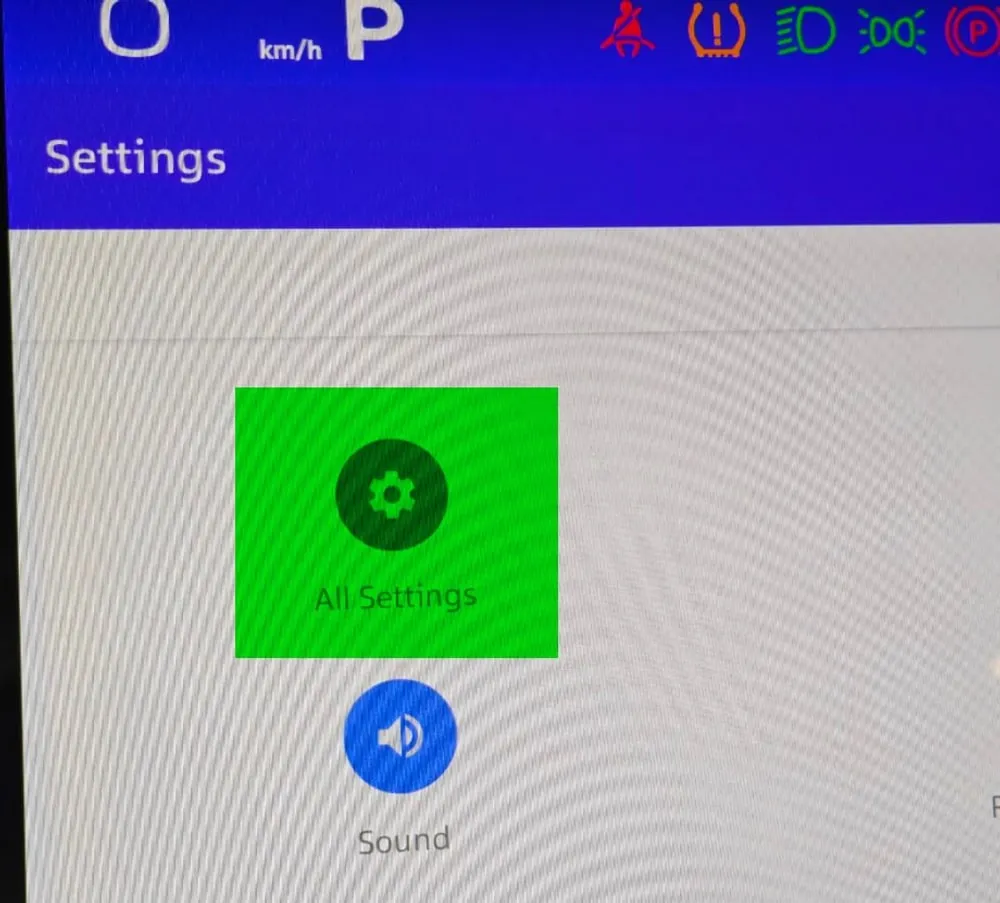
Scroll down to 系统 (System).
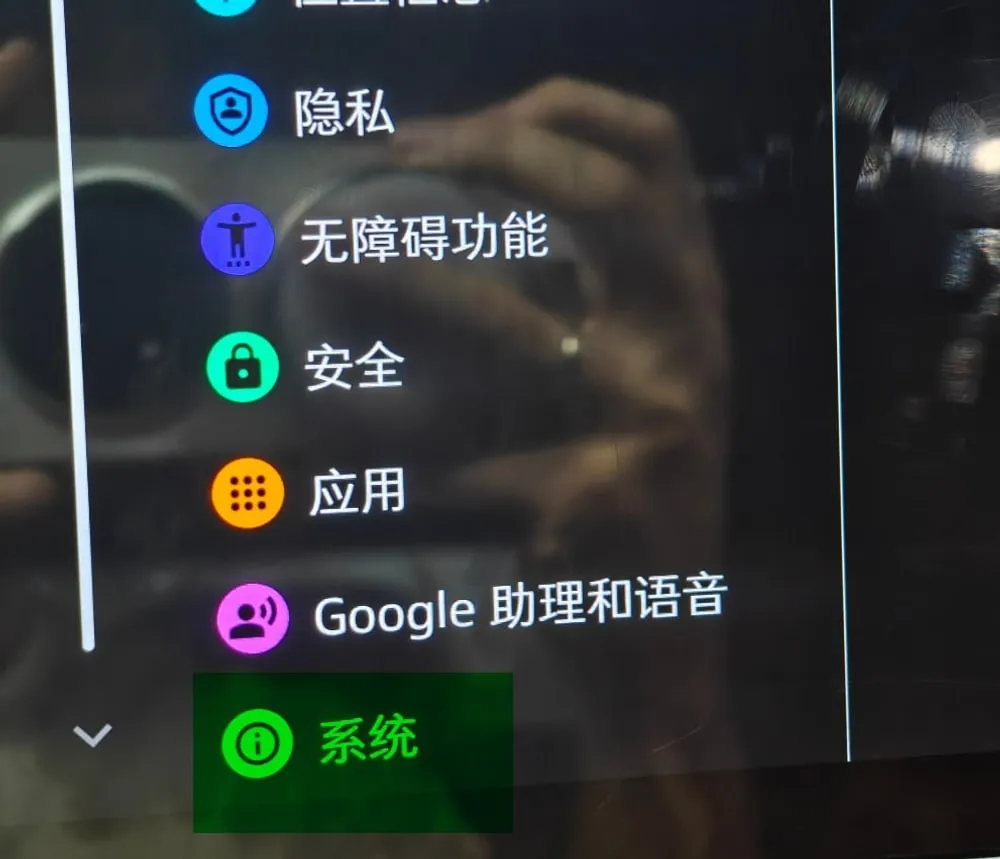
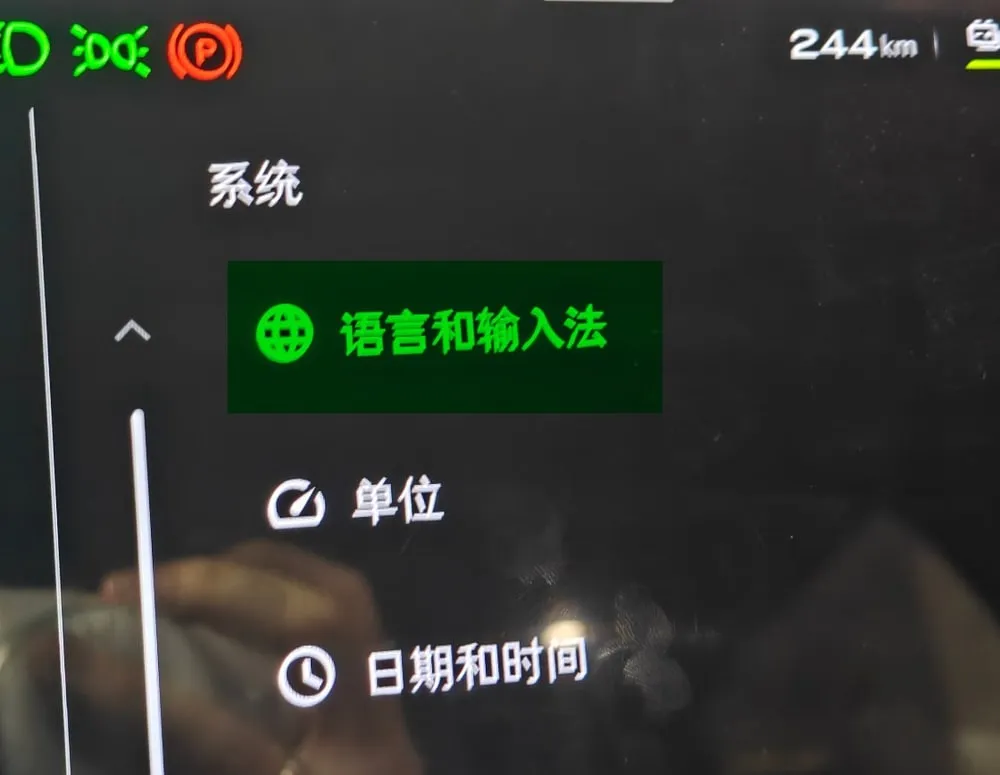
Open 语言和输入法 (Languages & input) and select the language you copied in step 17:
- EN → English (United States)
- ES → Español (España)
- RU → Русский (Россия)
- UA → Українська (Україна)
19. Verify
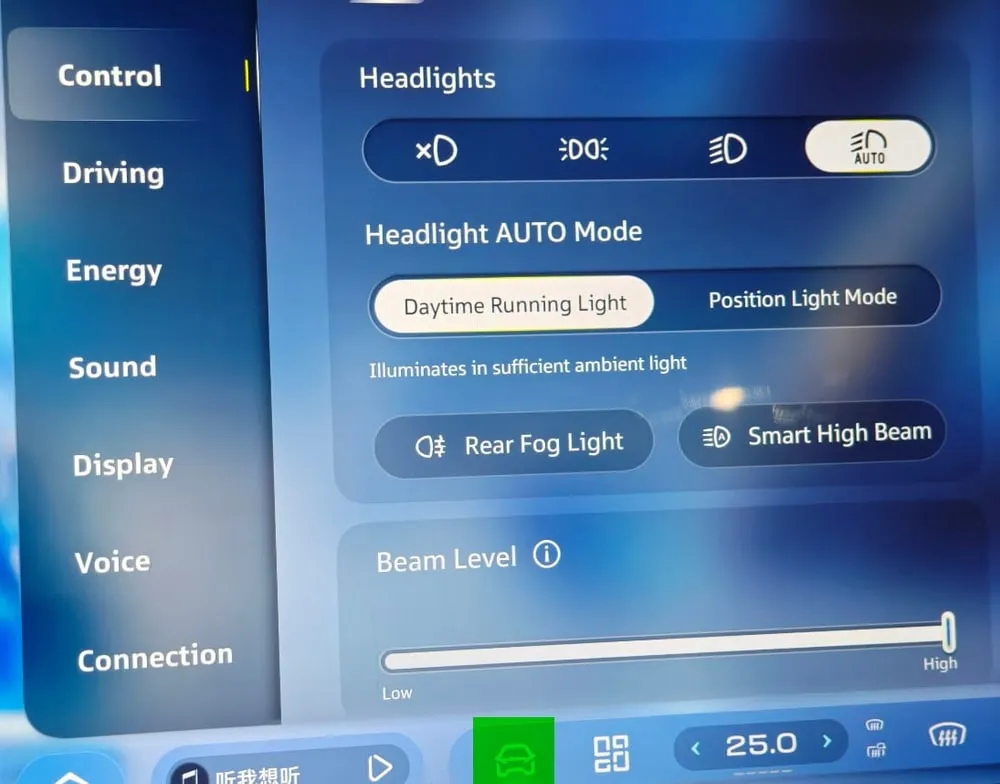
Section titled “19. Verify”Go back to the car’s own settings and wait for the translation to appear. Once Control / Driving / Energy / Sound / Display are in the target language, the job is done.