Checking for TPM 2.0
Cartoo requires a TPM 2.0 module on the machine it runs on. Without it the app will not start. Check this before you go out to a vehicle — not after.
Most laptops made since 2016 have TPM 2.0, but on many of them it ships disabled in the UEFI firmware, so “not found” usually means “switched off”, not “absent”.
Fastest check
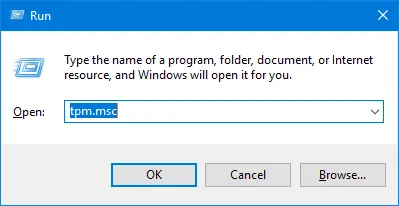
Section titled “Fastest check”Press Win + R, type tpm.msc, press Enter.
The TPM Management console opens. Two places matter: Status near the top, and Specification Version in the bottom row.
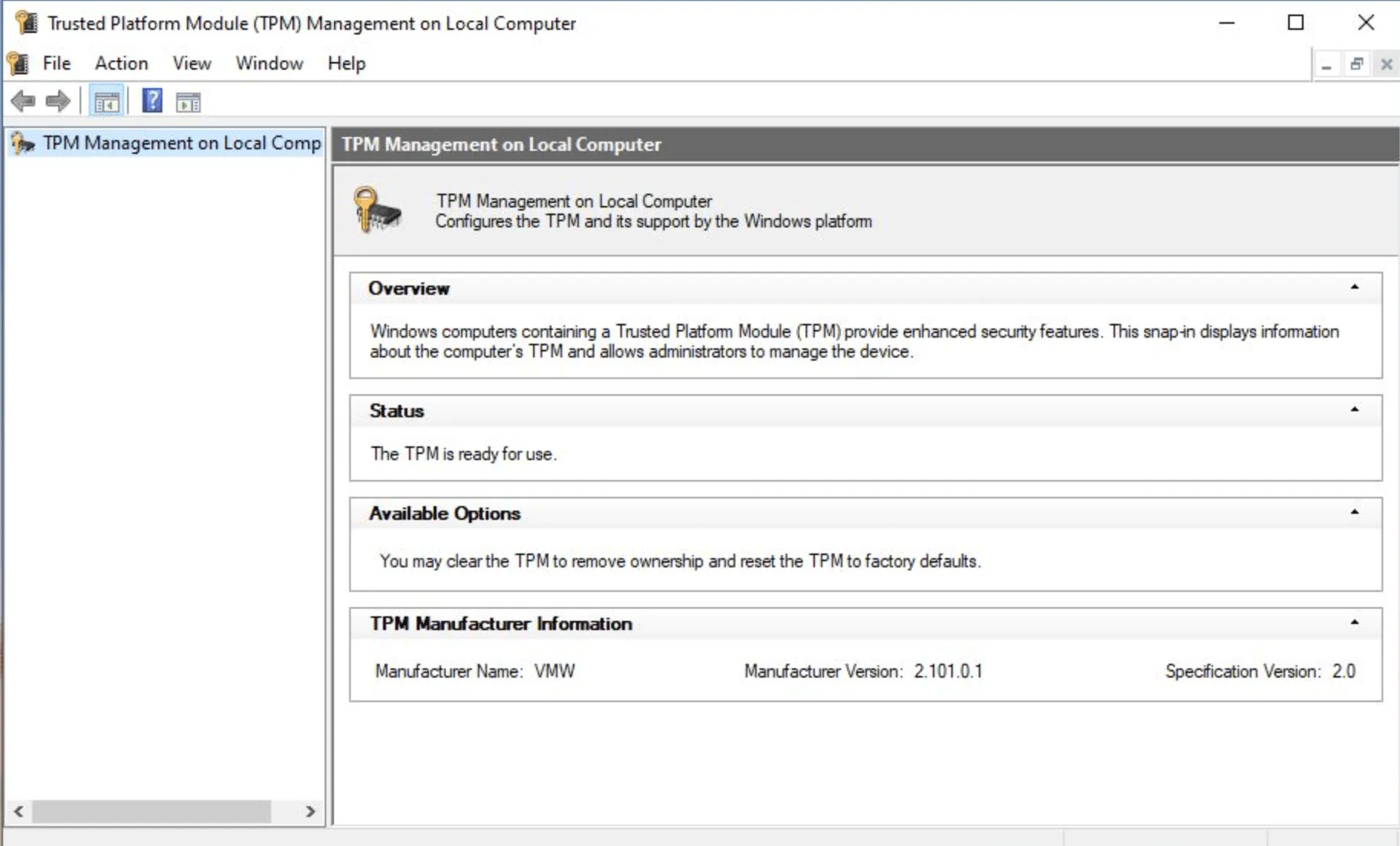
- “The TPM is ready for use” and, under TPM Manufacturer Information, Specification Version: 2.0 — you’re fine.
- Specification Version: 1.2 — the module is too old. It cannot be upgraded.
- “Compatible TPM cannot be found” — either disabled in the UEFI, or absent. Go to Turning it on.
From a terminal
Section titled “From a terminal”Useful when you need the answer in a script or over a remote session.
tpmtool ships with Windows and prints everything in one go:
tpmtool getdeviceinformation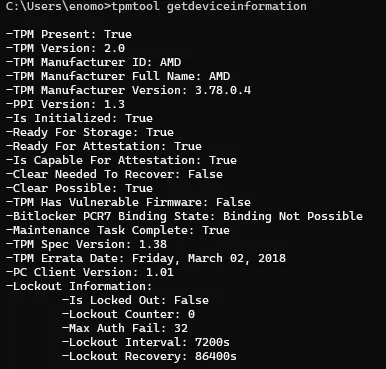
The two lines that matter are TPM Present: True and TPM Version: 2.0.
(TPM Spec Version further down is a different number — the revision of the
2.0 specification the chip implements. Ignore it.)
PowerShell has its own cmdlet:
Get-TpmLook at three fields: TpmPresent : True, TpmReady : True, and
ManufacturerVersion. To read the spec version directly:
Get-CimInstance -Namespace root/cimv2/security/microsofttpm -ClassName Win32_Tpm | Select-Object -ExpandProperty SpecVersionThe output starts with 2.0 on a good machine.
From the Windows UI
Section titled “From the Windows UI”Settings → Privacy & security → Windows Security → Device security → Security processor → Security processor details. Specification version must read 2.0.
If the Security processor section is missing from that page entirely, the TPM is disabled in firmware.
Turning it on
Section titled “Turning it on”The setting lives in the UEFI, and vendors all name it differently:
- Intel — Intel Platform Trust Technology, or Intel PTT
- AMD — AMD fTPM, or AMD Platform Security Processor
- Generic — Security Device Support, TPM Device, Trusted Computing
Reboot, enter the UEFI (usually F2, Del, or F10 during startup — the vendor’s splash screen names the key), find the setting under a Security or Advanced tab, enable it, save and exit.
Then re-run the tpm.msc check above. If it still finds nothing, the laptop
has no TPM 2.0 and cannot be used to run Cartoo.